Coupon
Coupon
The Coupon tab in the Stack Console allows administrators to create and manage promotional coupons for their customers, vendors, or resellers. Coupons can provide free services or percentage-based discounts, and can be configured with specific usage rules, billing cycles, and applicable services. This guide walks you through the steps to successfully add a coupon.
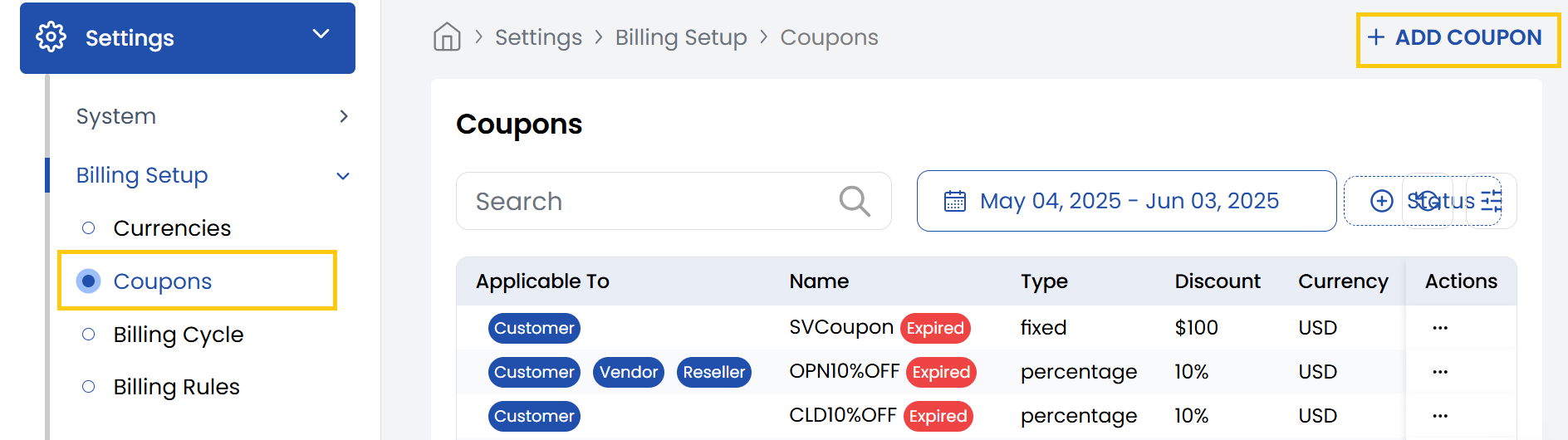
- From the left-hand side of the page under the Billing Setup section, click on Coupons to view the list of coupons.
- To create a new coupon, click on Add Coupon.
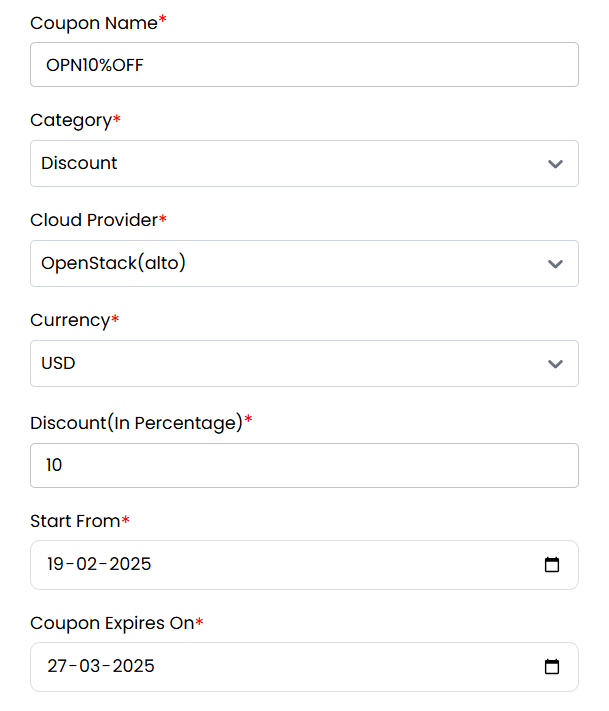
- Coupon Name: Provide a unique name for the coupon.
- Category: Choose one of the following:
- Free Coupon – For 100% discount or free service.
- Discount – For partial discounts (e.g., 10%, 25%).
- Cloud Provider: Select the cloud provider for the coupon.
- Currency: Choose the currency that the discount will apply to (e.g., USD).
- Discount (In Percentage): Enter the discount rate.
- Start From: Select the date when the coupon becomes valid (format: dd-mm-yyyy).
- Coupon Expires On: Select the expiration date.
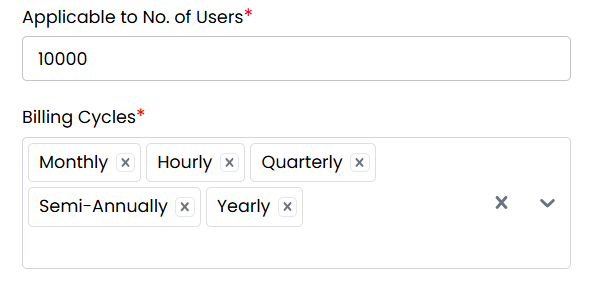
- Applicable to No. of Users: Specify how many users can use this coupon in total (e.g., 50).
- Billing Cycles: Select one or more billing cycles this coupon applies to (e.g., Monthly, Yearly).
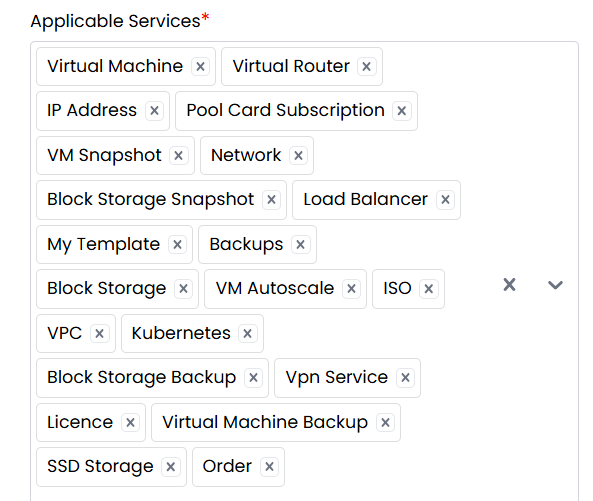
- Applicable Services: Choose one or more services this coupon can be used for (e.g., Backup, Storage, Compute).
- Status: Set this to Active/Inactive to make the coupon available.
- Applicable to: Choose which user types (Customer, Vendor and Reseller) can use this coupon.
- Is Coupon One Time Use?: Check this box if each user can only use the coupon once.
- Auto Redeem Coupon for New Clients: Check this box if the coupon should automatically apply to newly registered users.
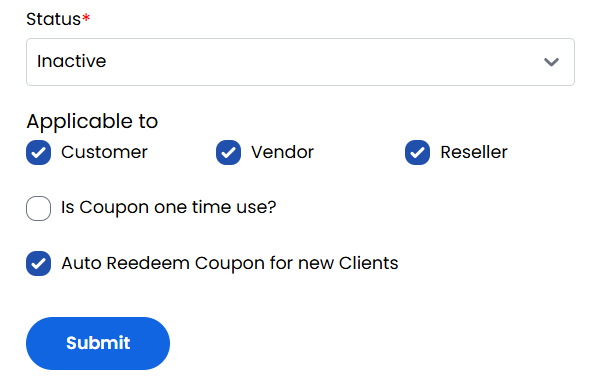
Review all the entered data carefully. Click Submit to save and activate the coupon.
Conclusion
The Coupon section provides flexible promotional tools to attract and retain customers through customizable discounts. For coupon configuration assistance, contact Stack Console support.